 Ranky
RankyHow to use Ranky
Everything Ranky can do, how to set it up and where to find it in the dashboard. New here? Start with the first section.
1. Getting started
Ranky works as soon as it joins your server. A couple of minutes of setup makes it feel like part of your community.
- 1Click Add to Discord, pick your server and confirm the permissions. Ranky needs them to read activity, post cards and hand out roles.
- 2In Server Settings → Roles, drag the Ranky role above every role you want to give as a Level Role. Discord only lets bots manage roles below their own.
- 3Log in to the dashboard with Discord and open your server.
- 4On the Main settings tab, choose an announcement channel, for example #level-ups, and your timezone. Save.
- 5That's it: members start earning XP right away. Type
/rankin Discord to see your card.
💡 Ranky never reads the content of messages. It only counts that a message, a reaction or a minute in voice happened.

2. How members earn XP
Three kinds of activity turn into XP. Anti-spam rules make sure only real activity counts.
- 1Chat: 15-25 XP per message, at most once every 60 seconds per member. Bots, webhooks and No-XP channels don't count.
- 2Voice: 5 XP for every full minute in a voice channel with at least 2 people who can hear. Muted, deafened, alone or in the AFK channel earns nothing.
- 3Reactions: 3 XP for reacting to someone else's message, once per message, at most every 30 seconds and up to 100 XP a day.
- 4Levels: going from level n to n + 1 takes 5n² + 50n + 100 XP, so the first levels come quickly and higher ones take real dedication.
💡 On Premium you can change every number here and add multipliers (see XP settings below). Members can also get bonus XP by voting for Ranky (see Vote rewards).
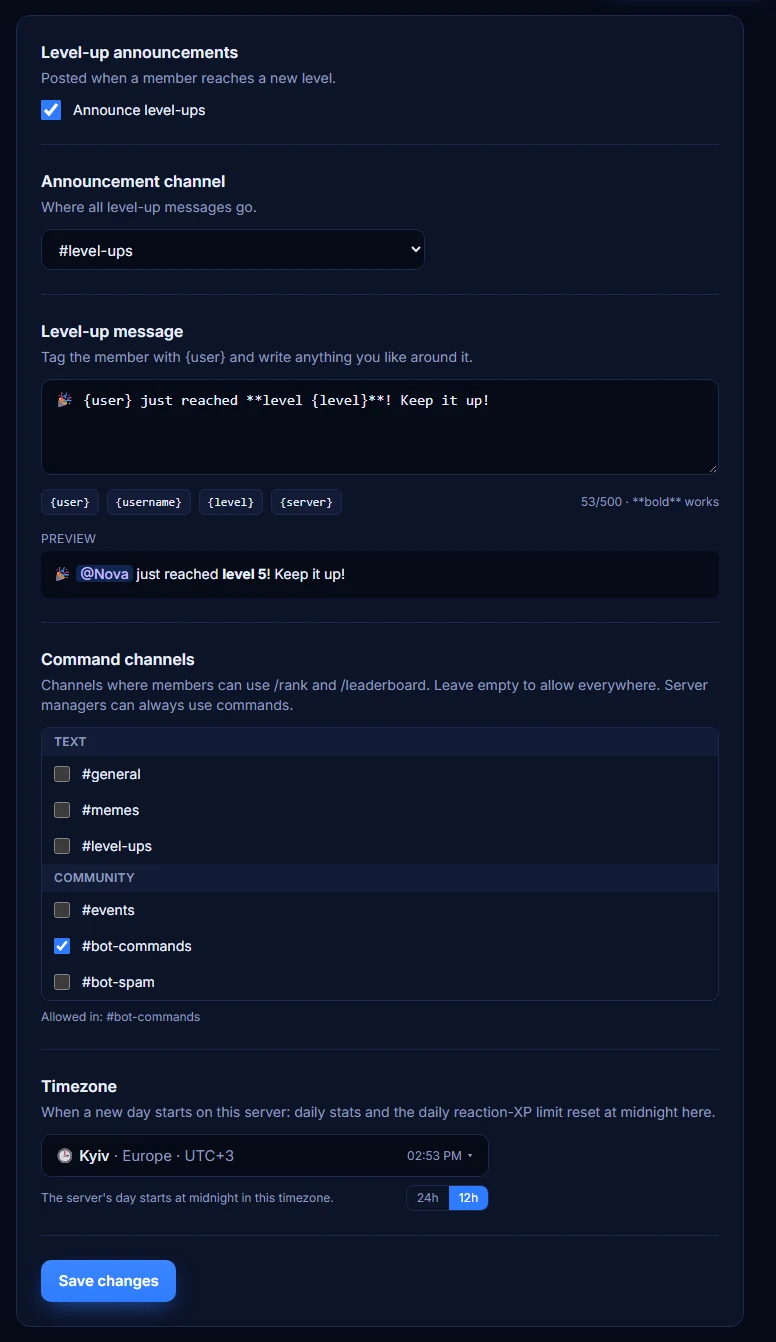
3. Level-up announcements
Every time a member reaches a new level, Ranky posts a card with their avatar and the new level.
- 1Open Main settings → Announcement channel and pick where the cards go. If you choose nothing, Ranky posts where the level was earned.
- 2Turn announcements off with the Announce level-ups switch if you only want Level Roles.
- 3Premium: write your own message in Level-up message. Use
{user}to tag the member,{username}for their name without a tag,{level}and{server}. The preview shows how it will look. - 4Members on Premium servers can turn off their own tag with
/pings enabled:false. They still get the card, just without a notification.
💡 Ranky needs Send Messages, Embed Links and Attach Files in the announcement channel. Without Attach Files it posts text only.

4. /rank, /leaderboard and the web leaderboard
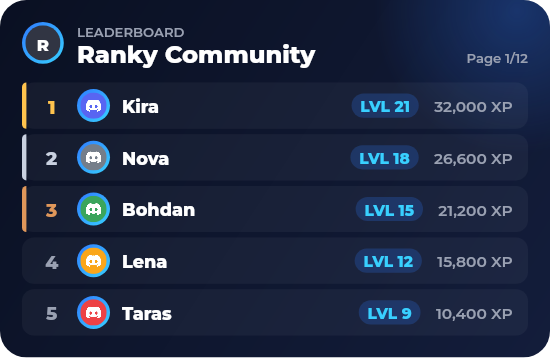
Members can check their progress in Discord and share the leaderboard online.
- 1
/rankshows a card with level, server rank, XP to the next level and activity./rank user:@membershows someone else's. - 2
/leaderboardposts the top 10 as an image, with a link and a button to the full leaderboard. Addpage:2for the next 10. - 3The web leaderboard lists every member with XP, with a podium for the top 3. Anyone with the link can open it, no login needed.
💡 Want members to use commands only in one channel? See Command channels below.

5. Level Roles
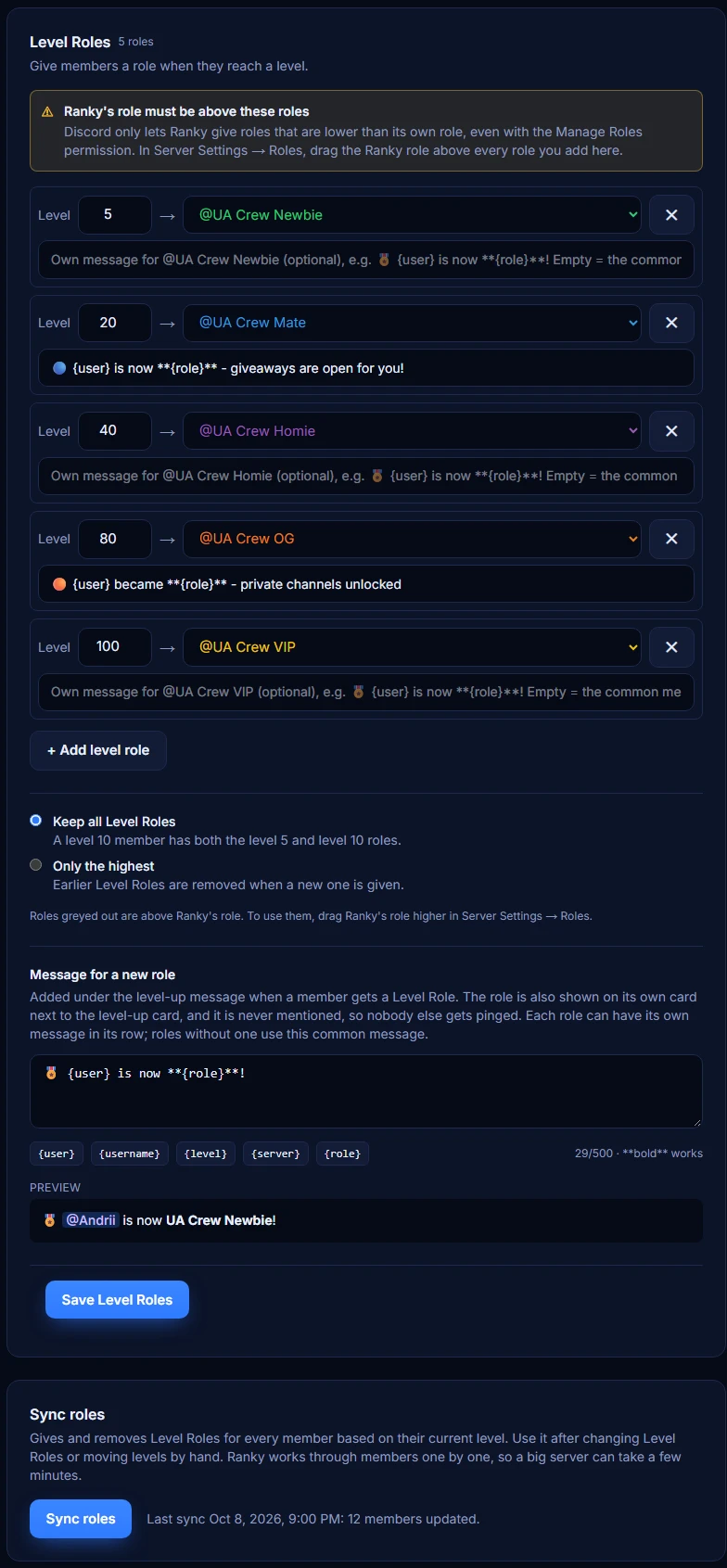
Give members a role automatically when they reach a level: a great way to reward your regulars.
- 1Open the Level Roles tab and click + Add level role.
- 2Enter the level and pick the role, for example level 5 → @Active, level 10 → @Regular.
- 3Choose Keep all Level Roles so members collect every role, or Only the highest so earlier ones are removed.
- 4Save. Members get the roles on their next level-up. To give them to everyone who already has the level, for example after moving levels from another bot, press Sync roles below the list.
- 5When a member gets a Level Role, the level-up message gets an extra line and a New role! card. The role is never mentioned, so nobody else is pinged. Premium: write that line yourself in Message for a new role or give each role its own message in its row, using
{role}for the role name.
💡 Ranky needs the Manage Roles permission and its role must be above the Level Roles in Server Settings → Roles; the tab warns you about both. Free servers can have 3 Level Roles, Premium has no limit.

6. Command channels and timezone
Keep commands tidy and make daily stats match your community's day.
- 1Bot language (Main settings tab): the language of everything Ranky writes on your server - command replies, level-ups, cards, giveaways and announcements.
- 2Command channels (Main settings tab): tick the channels where members may use /rank and /leaderboard. Leave everything unticked to allow all channels. Server managers can always use commands.
- 3Timezone (Main settings tab): pick your city. Daily stats and the daily reaction limit reset at midnight there. Use the 12h / 24h switch to change how times are shown to you.
- 4You can also set the timezone in Discord with
/settings timezone.
💡 For extra control, Discord's own Server Settings → Integrations → Ranky lets you limit commands by role or channel too.
7. XP settings and multipliers
Tune how fast members level up and reward activity where it matters most.
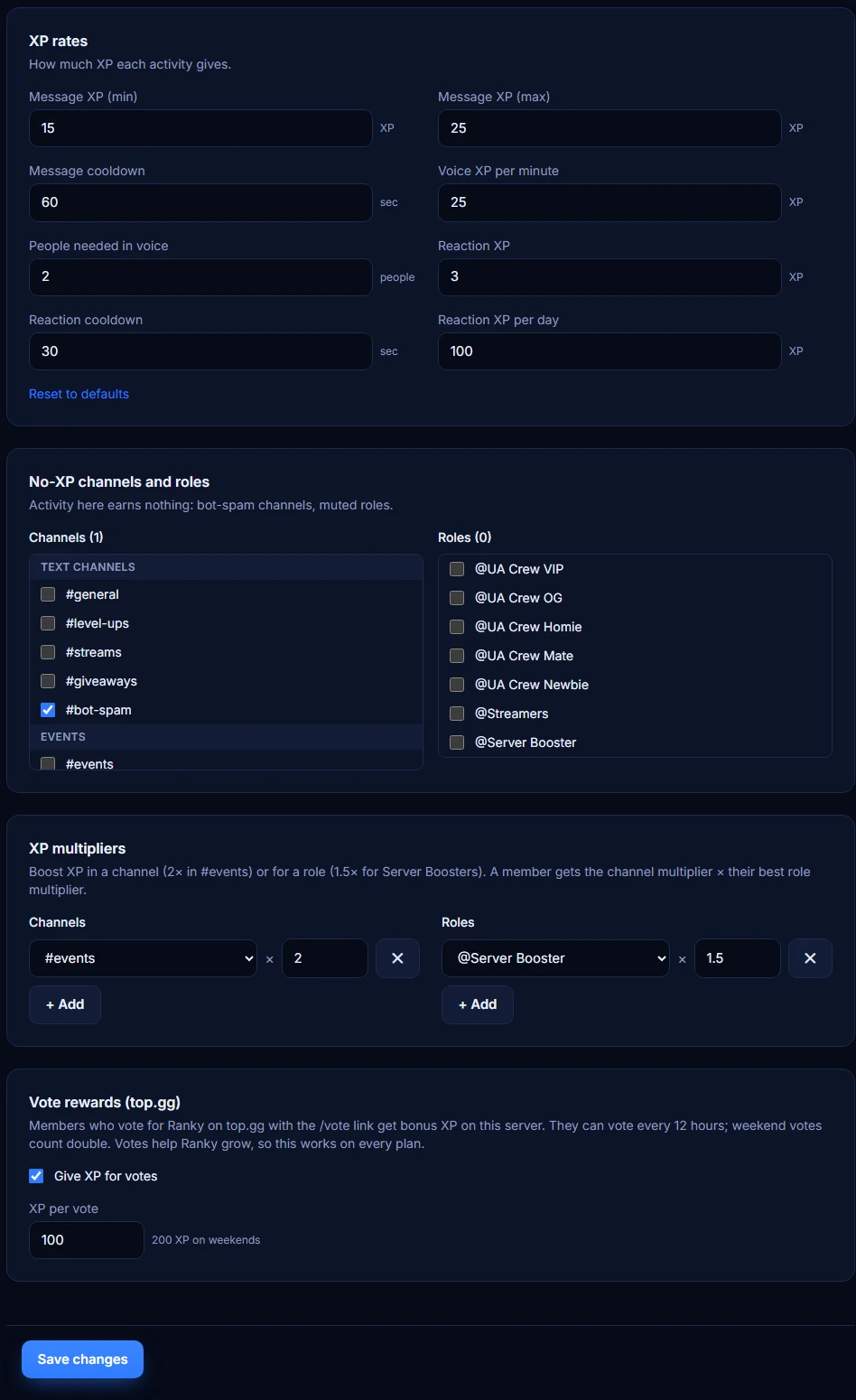
- 1XP rates (Premium): change XP per message, voice minute and reaction, cooldowns, the daily reaction limit and how many people are needed in voice.
- 2No-XP channels and roles: activity there earns nothing, useful for bot-spam channels or muted roles. Premium.
- 3Multipliers (Premium): for example 2× in #events or 1.5× for Server Boosters. A member gets the channel multiplier × their best role multiplier.
- 4Vote rewards (every plan): members get bonus XP on your server when they vote for Ranky on top.gg with
/vote. Change the amount or turn it off here.
💡 Changes apply right away, no restart needed.
8. Card design
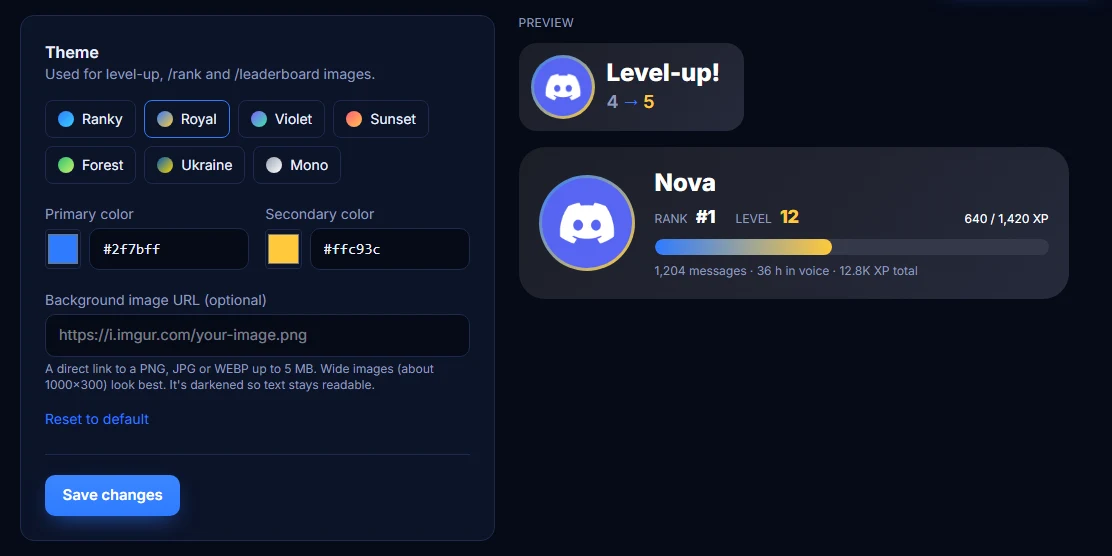
PremiumMake level-up, /rank and /leaderboard cards match your server's style.
- 1Open the Appearance tab and pick a ready theme, or set your own primary and secondary colors.
- 2Optionally paste a link to a background image (PNG, JPG or WEBP up to 5 MB, wide images work best). Ranky darkens it so text stays readable.
- 3Check the live preview, then save.
9. XP events
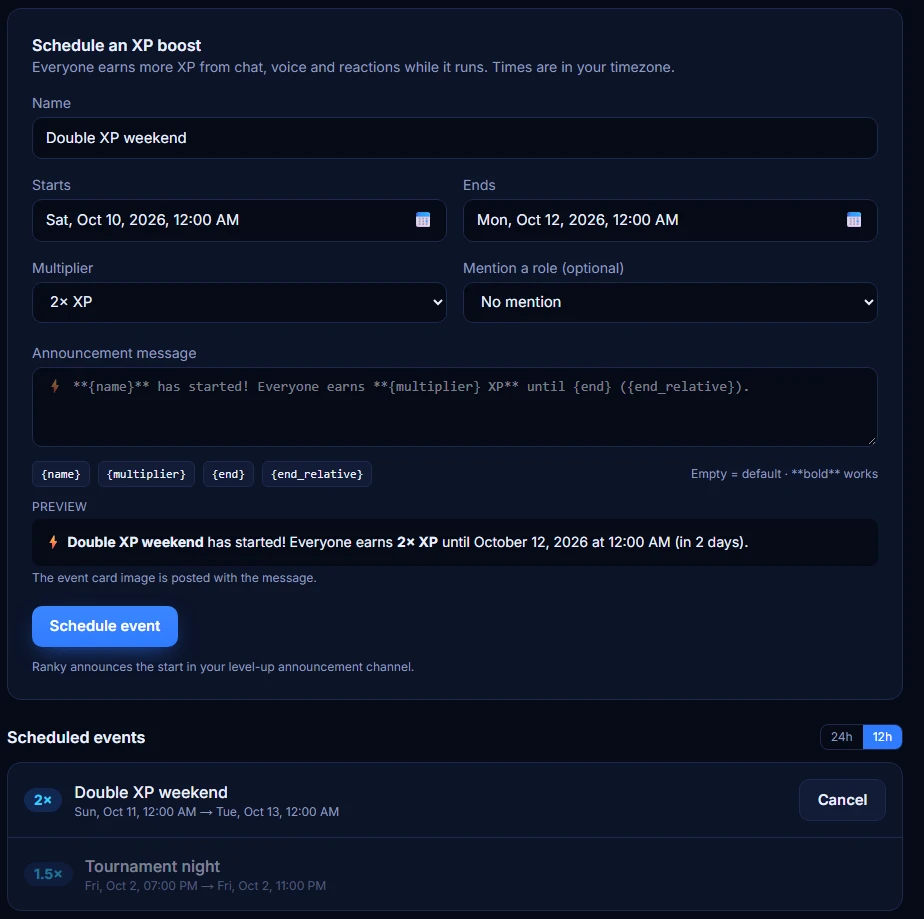
PremiumRun Double XP weekends or short boosts for special occasions.
- 1Open the Events tab, give the event a name, pick the start and end time and a multiplier: 1.5×, 2×, 3× or your own from 1.1 to 5.
- 2Optionally mention a role, for example @Events, and write your own announcement using
{name},{multiplier},{end}and{end_relative}. - 3Click Schedule event. When it starts, Ranky posts an event card in your announcement channel and everyone earns more XP until it ends.
💡 Times are entered in your own timezone. In Discord, the end time is shown in each member's timezone automatically.

10. Giveaways
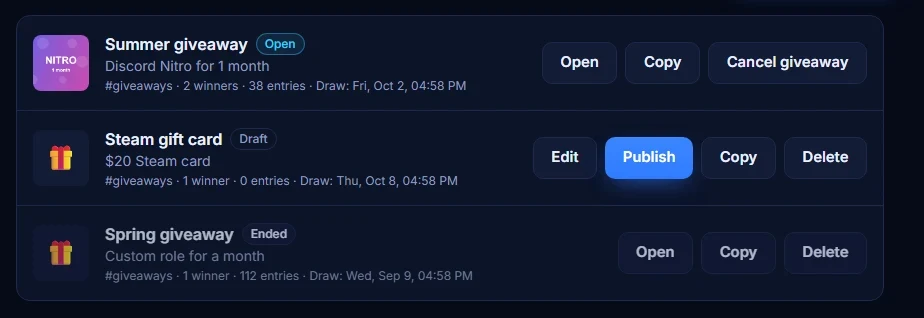
PremiumRun giveaways with a join button, entry rules and an automatic draw at the exact time you choose.
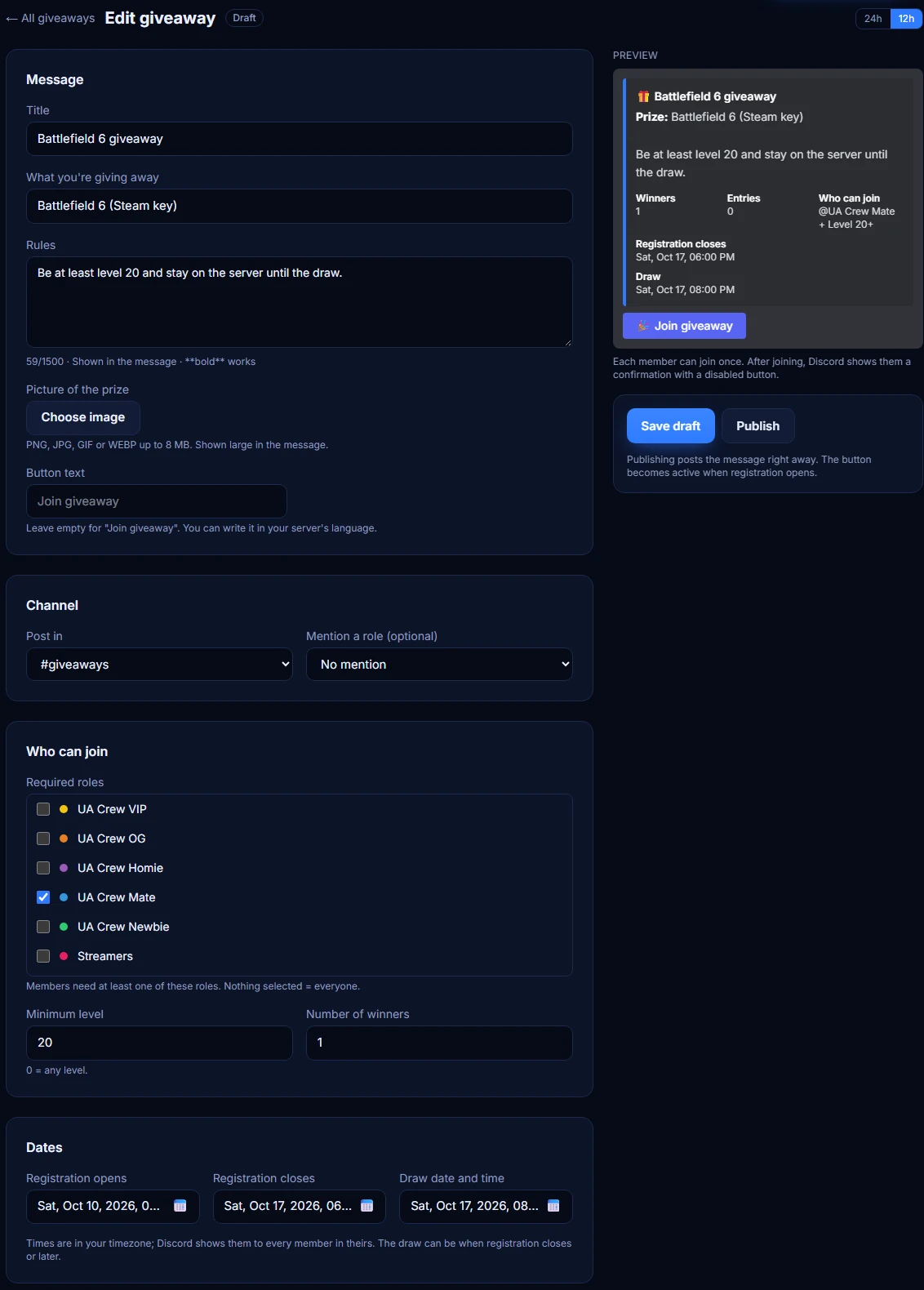
- 1Open the Giveaways tab and click + New giveaway.
- 2Write a title, what you're giving away and the rules, and upload a picture of the prize. You can also change the button text, for example into your server's language.
- 3Pick the channel, the number of winners and who can join: members with certain roles, a minimum level, or everyone.
- 4Set when registration opens and closes and the exact draw time. Save it as a draft and come back to it any time.
- 5Click Publish. Members press the button to join, once each. Ranky draws the winners at the draw time, announces them in the channel and marks them in the entrants list.
💡 Use Copy to run the same giveaway again: the copy is saved as a new draft with future dates.
11. Bot name and avatar
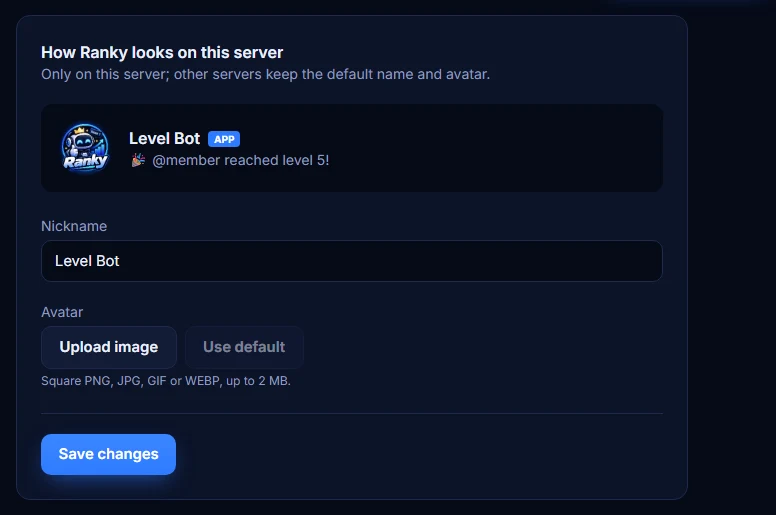
PremiumGive Ranky a custom name and avatar on your server only.
- 1Open the Bot profile tab, type a nickname and upload a square image up to 2 MB.
- 2Save. Other servers keep the default Ranky name and avatar.
💡 To change the nickname, Ranky's role needs the Change Nickname permission.
12. Managing XP by hand
PremiumReward event winners, fix mistakes or move someone to a level straight away.
- 1
/xp give user:@member amount:500adds XP,/xp removetakes it away (never below 0). - 2
/xp set-level user:@member level:10puts a member straight at a level. - 3Add a
reasonto keep a note. Level Roles update right away. A level gained this way is announced like any other, in the announcement channel or, if none is set, where you used the command. - 4By default only server managers see /xp. To let moderators use it: Server Settings → Integrations → Ranky → /xp → add the moderator role.
13. Backups, reset and role sync
Start a new season, undo a mistake or apply Level Roles to everyone at once.
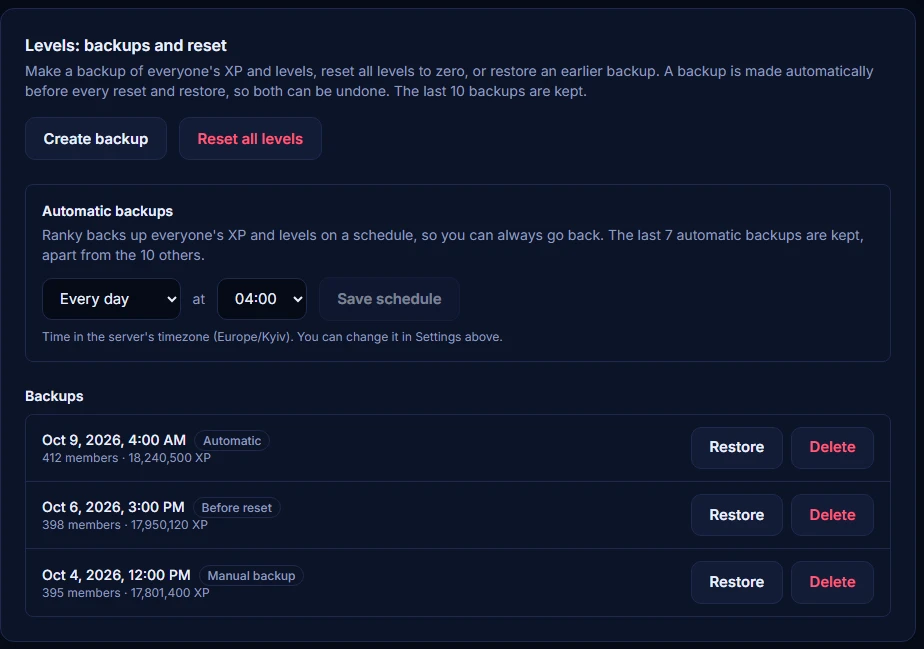
- 1On the Main settings tab, Create backup saves everyone's XP and levels. A backup is also made automatically before every reset and restore.
- 2Reset all levels puts every member back to level 0 (type RESET to confirm). Message and voice counters are kept. Only the server owner or an Administrator can reset or restore.
- 3Restore puts everyone back to the XP and levels of a backup. The last 10 backups are kept.
- 4Automatic backups (Premium): every day, every 3 days or every week at the hour you choose. The last 7 are kept, apart from the others.
- 5Sync roles on the Level Roles tab gives and removes Level Roles for every member based on their current level, and shows the progress.
14. Stream alerts
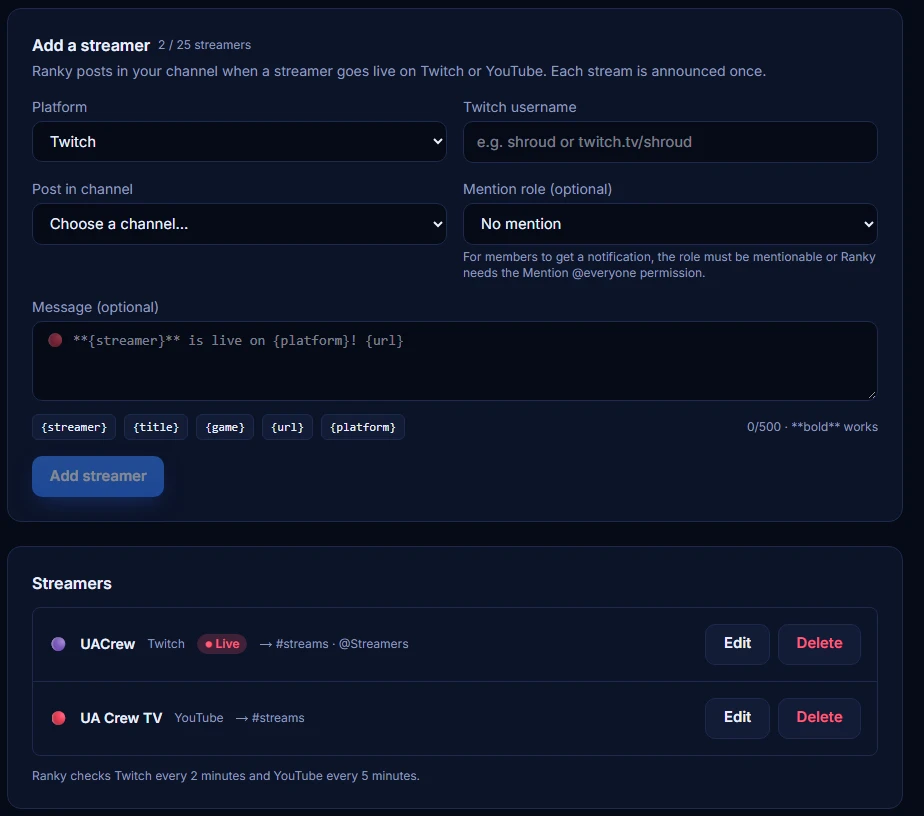
PremiumLet your community know the moment a streamer goes live on Twitch or YouTube.
- 1Open the Streams tab, pick the platform and enter a Twitch username or a YouTube channel link or @handle.
- 2Choose the channel for alerts, optionally a role to mention, and write your own message with
{streamer},{title},{game},{url}and{platform}. - 3Ranky checks Twitch every 2 minutes and YouTube every 5 minutes and posts each stream once, with its title, preview and a Watch button.
💡 For members to get a notification, the mentioned role must be mentionable or Ranky needs the Mention @everyone permission. Up to 25 streamers per server.
15. Vote rewards (top.gg)
Members can support Ranky on top.gg and get bonus XP on your server for it.
- 1
/votegives a member a link to vote for Ranky on top.gg./rankshows the same link whenever they can vote. - 2Each vote gives bonus XP on the server the link came from: 100 XP by default, double on weekends. Members can vote every 12 hours.
- 3Change the amount or turn the reward off on the XP settings tab. It works on every plan.
16. Something not working?
Tell us and we'll look into it.
- 1On any tab of your server's dashboard, click Report a problem at the top, describe what happened and send it.
- 2The report reaches the Ranky team together with your server and the page you were on, so you don't need to explain where it happened.
💡 Check the FAQ first: most problems with roles and announcements come from Discord permissions.
17. All commands
Type / in Discord to see them. Commands marked "Admins & moderators" need the Manage Server permission by default.
/rank [user]/level [user]/leaderboard [page]/pings enabled:<true|false>/xp give user:<member> amount:<xp> [reason]/xp remove user:<member> amount:<xp> [reason]/xp set-level user:<member> level:<n> [reason]/vote/settings show/settings levelup-channel [channel]/settings timezone zone:<city>/settings levelup-announcements enabled:<true|false>